
UNREAL ENGINE 5.8 · WINDOWS
Add quests to your game.
A practical guide with complete Blueprint examples and plain-English steps.
Start here
What this plugin does
Quest & Objective Kit keeps track of quests, their tasks and completion. It includes a quest journal, an on-screen objective list and an experience display. You can use these windows or connect your own.
Try the demonstration first
Install the plugin from Fab, then download the separately linked Example Project. Follow the setup below to open QOK.uproject. Speak to Rowan, accept the first quest and collect its required items. Return to Rowan to finish it. The next quest becomes available after the previous one is turned in.
What your own game supplies
Your game decides how players pick up items, what fits in their bags and when rewards are given. The plugin records quest progress. You do not need another BIS plugin, but you do need to connect your own item and reward systems if you replace the demonstration.
How to read this guide
Start with the setup pages, then follow the numbered Blueprint examples. Each example names the file to open, shows the complete graph and explains what should happen. You do not need to use all 42 examples.
Before you begin
A Blueprint is Unreal's visual way of giving instructions. A node is one box in the graph. A pin is a connection point on a box. White wires control when things happen; colored wires carry information. This guide explains the quest steps, but assumes you can open a Blueprint and connect pins.
Install and find the examples
1. Keep a backup
Make a recoverable copy of your project before installing the plugin. Use the plugin build that matches your Unreal Engine version. The current demonstration was checked with Unreal Engine 5.8.3 on Windows.
2. Install the plugin, then get the sample
Install Quest & Objective System: Plug&Play from Fab into Unreal Engine5.8. Download the Example Project using the link in the Fab listing and extract it to a writable folder. The example deliberately excludes the purchased QuestObjectiveKit plugin; Unreal uses your Fab installation. No other BIS purchase is needed.
3. Open the gathering example
The example has a small C++ host. Install Visual Studio2022 with Game development with C++ and a Windows SDK. Open QOK.uproject and allow Unreal to compile its modules. Alternatively, generate project files and build QOKEditor in Development/Win64. Open /Game/QOKStarterDemo/Maps/L_Starter and press Play. The included Rowan helper and native bag are sample systems, not dependencies of the reusable quest plugin.
4. Find the example files
Open the Content Drawer. In its Settings menu, enable Show Plugin Content. Search for BP_BIS_QOK_IntegrationExamples. Double-click it, then find the graph tab named on the example page. Examples 23-42 are in BP_BIS_QOK_ExtendedExamples.
5. Start a graph deliberately
The red box in an example is a Custom Event: an entry point that your game must call. Merely placing the example Blueprint in a level does not run every graph. Copy the needed pattern into your own Blueprint and connect its execution wire to the action that should start it, such as a button click.
6. Make your first quest
Begin with example 01 to get the quest manager, then example 02 to add a quest. Check whether it can start with example 03 and accept it with example 04. Begin with one simple objective before building a chain.
Packaging the demonstration
The supplied project includes cook settings for QOKStarterDemo/CollectibleArt, Items and UI. Cooking means including assets in the packaged game. If you copy the demonstration into another project, keep those folders in Project Settings > Packaging > Additional Asset Directories to Cook. Your own assets loaded by text paths need an equivalent packaging rule.
Names used in the examples
Provider means the quest manager
Provider is the input pin that tells the example which local player's quest manager to use. Get it with GetQuestObjectiveKit in example 01. Keep this reference and reuse it. Check that it is valid before calling other quest functions.
IDs are internal names
QuestId identifies one quest. ObjectiveId identifies one task in it. Choose names such as GatherMushrooms and CollectMushrooms, then use exactly the same names in every related call. They are separate from the title shown to the player.
True and false are yes and no
A bool is a yes/no value. True often means a request succeeded; false means it was refused. Read each example's result before giving rewards or creating pickups. A Return Value pin carries the answer back to your graph.
Events are notifications
An event announces that something happened. Bind means start listening; Unbind means stop listening. For example, listen for objective progress changes to refresh your own window. Connect once when opening that window and disconnect when closing it.
Host means your game
When this guide says your game is responsible, that includes your inventory, combat, saving and multiplayer rules. The quest plugin cannot verify a successful pickup in a system it has not been connected to.
Accept, collect and turn in
Offer a quest without starting it
Use CanStartQuest before showing an offer. Opening the offer or choosing Cancel should not call StartQuest. When Accept is pressed, check again and call StartQuest. Create quest pickups only after that call succeeds.
Count items that were actually collected
Let the bag accept the item first. If the bag is full, leave the item in the world and do not add quest progress. Use SetCollectionObjectiveCount to tell the quest manager how many required items are currently in the bag. Update that number after dropping or using items too.
Finish the exchange safely
Before turn-in, check the required items, interaction distance and room for rewards. Your inventory code must remove the requested items and grant rewards as one recoverable exchange. If a step fails, restore the previous items and do not leave the quest marked complete. TurnInQuest does not do that external inventory work for you.
Let players read the story again
Select a quest in the journal and open READ QUEST TEXT. The journal uses StartDialogue for the full description and Summary if no longer description was supplied. Put your full quest story in StartDialogue when creating the definition.
Test the difficult cases
Try a full bag, a cancelled offer, a repeated turn-in and dropping a required item. None should give free progress or extra rewards. The next quest should unlock only after a successful completion.
Connect and adjust the windows
Use the included windows
ShowJournal opens the journal; HideJournal closes it. ToggleJournal switches between the two. Test that closing it gives control back to the player. You can keep these windows even if the rest of your game uses a different UI.
Use your own windows
Get the quest manager first. Listen for OnQuestStateChanged and OnObjectiveProgressChanged, then read GetQuestDefinitions and GetAllProgress to fill the window when it opens. Match records by QuestId. Use IsQuestVisibleInJournal if you want the same hiding of locked and completed quests as the included journal.
Replace the launcher button
SetStandaloneLauncherSuppressed hides the included launcher while your own button is present. Your button can call ShowJournal or ToggleJournal. Set suppression back to false when removing your replacement.
Make settings change while dragging
For your own slider, call the matching Set function from OnValueChanged. This changes the existing window immediately. Call CommitAppearance once when the player releases the slider or finishes dragging the window, and check its result. Do not save repeatedly every frame.
Understand the appearance controls
Normal background opacity changes the plain backing. Backdrop-art opacity changes the decorative picture. Border opacity changes the frame. The master opacity affects the whole window. Progress width and height size the XP bar; backdrop width and height size its optional backing panel.
Fit and reset
SetTrackerHeight with 0 lets the objective list fit its contents. ResetAppearance restores appearance defaults without deleting quest saves. CenterWindows brings windows back into view. SetExternalSuiteCoordinatorActive is for a game that already manages shared window/input behavior; it is not required just to use your own launcher.
Keep progress and preferences
Demo resets and real game saves are different
The sample starts its three quests fresh each Play session while keeping appearance preferences. That demonstration choice does not mean your own game has to reset. Decide whether your game should keep quest progress and connect saving accordingly.
Use your own save system
CaptureHostState copies quest data into a QOK Save Game object. It does not write a file. Save that object through your game's save system together with the matching inventory and reward records. RestoreHostState reads it back after your game has loaded it.
Report a save honestly
Before enabling SetExternalPersistenceActive, connect SetHostSaveHandler to your save function. That function must return true only after the save succeeds. A missing connection or failed write must return failure, so the UI does not claim settings were saved.
Do not give rewards again while loading
Loading a completed quest should restore its completed state, not give its rewards a second time. Test saving, closing, loading and trying to turn in the same quest again.
Clean up when a window closes
Stop listening to the same manager you connected to. The examples call this Unbind. Leaving an old connection can make a closed window keep responding or make the next window react twice.
Optional C++ integration
Blueprint users can skip this page
The Blueprint examples cover the normal setup. This section is for a developer writing C++ code. You do not need to edit C++ just to use the examples.
Use the same public functions
Add QuestObjectiveKit to your module dependencies and include QOKBlueprintLibrary.h. Use UQOKBlueprintLibrary::GetQuestObjectiveKit with a valid world context and local-player index. Check the returned pointer before using the UQOKQuestSubsystem functions.
Your game still makes the gameplay decisions
The C++ route has the same responsibilities as Blueprint: confirm real inventory changes, validate multiplayer actions, avoid duplicate rewards and remove event subscriptions when their owner is destroyed.
01 | Find the player's quest manager
BIS01_GetQuestObjectiveKit_Example
What to connect
1. In the Content Drawer, open BP_BIS_QOK_IntegrationExamples. In the Blueprint editor, open the graph tab BIS01_GetQuestObjectiveKit_Example.
2. Use local player index 0 for the usual single-player case. Run the example from your local player setup. When using GetQuestObjectiveKit directly in your own Blueprint, it also needs a valid game world context; Unreal normally supplies that from the Blueprint calling it.
Expected result
BIS01_LastReturnValue contains the quest manager. Use Is Valid before storing and reusing it as Provider.
02 | Add a quest your game can offer
BIS02_RegisterQuestDefinition_Example
What to connect
1. In the Content Drawer, open BP_BIS_QOK_IntegrationExamples. In the Blueprint editor, open the graph tab BIS02_RegisterQuestDefinition_Example.
2. Use the quest manager from example 01 for the Provider pin. The red Custom Event needs to be called by your game; it does not run by itself.
3. Make a QOK Quest Definition. Give it a QuestId, a title and at least one objective with an ObjectiveId and a TargetCount greater than zero. Connect Definition and Provider. Add prerequisite quests first.
Expected result
True means the quest was added. Reusing the same QuestId returns false and does not replace the existing quest.
03 | Check whether a quest can be offered
BIS03_CanStartQuest_Example
What to connect
1. In the Content Drawer, open BP_BIS_QOK_IntegrationExamples. In the Blueprint editor, open the graph tab BIS03_CanStartQuest_Example.
2. Use the quest manager from example 01 for the Provider pin. The red Custom Event needs to be called by your game; it does not run by itself.
3. Connect Provider and the QuestId you want to offer. Run this before opening the offer window.
Expected result
True means you can offer it. This check does not accept the quest. Cancel should simply close the offer.
04 | Accept a quest
BIS04_StartQuest_Example
What to connect
1. In the Content Drawer, open BP_BIS_QOK_IntegrationExamples. In the Blueprint editor, open the graph tab BIS04_StartQuest_Example.
2. Use the quest manager from example 01 for the Provider pin. The red Custom Event needs to be called by your game; it does not run by itself.
3. When the player presses Accept, check CanStartQuest again. Then call StartQuest with the same Provider and QuestId.
Expected result
Only a successful result should let your game create its quest pickups. Pressing Accept again must not create a second set.
05 | Add progress after something succeeds
BIS05_ReportObjectiveProgress_Example
What to connect
1. In the Content Drawer, open BP_BIS_QOK_IntegrationExamples. In the Blueprint editor, open the graph tab BIS05_ReportObjectiveProgress_Example.
2. Use the quest manager from example 01 for the Provider pin. The red Custom Event needs to be called by your game; it does not run by itself.
3. Connect Provider, the active QuestId, its ObjectiveId and a positive Amount. Call this after the gameplay action succeeds, not merely when its button is pressed.
Expected result
Progress increases for the accepted action. Do not call it for a failed pickup. ReturnToQuartermaster tasks use the turn-in path instead.
06 | Count the same event only once
BIS06_ReportUniqueObjectiveProgress_Example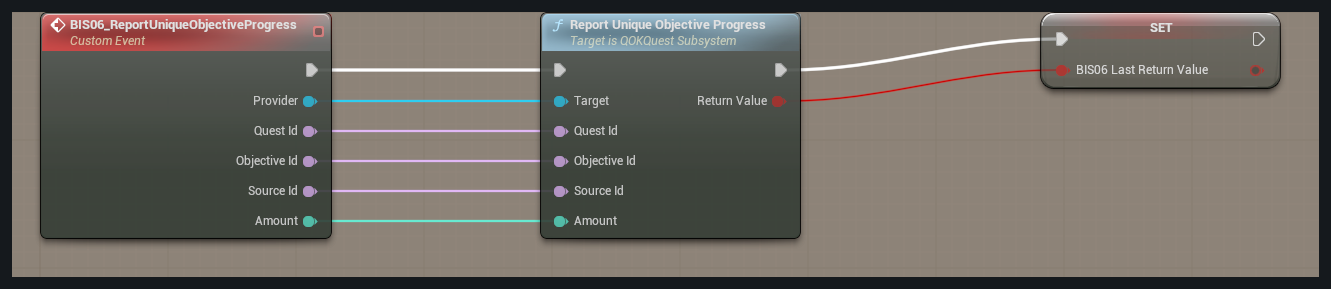
What to connect
1. In the Content Drawer, open BP_BIS_QOK_IntegrationExamples. In the Blueprint editor, open the graph tab BIS06_ReportUniqueObjectiveProgress_Example.
2. Use the quest manager from example 01 for the Provider pin. The red Custom Event needs to be called by your game; it does not run by itself.
3. Connect Provider, QuestId, ObjectiveId and Amount. Give the successful event a SourceId that stays the same if that event is reported again.
Expected result
The first report counts. Repeating the SourceId in that quest attempt does not add progress again. Your game still checks whether the event was legitimate.
07 | Match a collection task to the bag
BIS07_SetCollectionObjectiveCount_Example
What to connect
1. In the Content Drawer, open BP_BIS_QOK_IntegrationExamples. In the Blueprint editor, open the graph tab BIS07_SetCollectionObjectiveCount_Example.
2. Use the quest manager from example 01 for the Provider pin. The red Custom Event needs to be called by your game; it does not run by itself.
3. After adding, using or dropping an item, count what is really in the bag. Connect that total to CurrentCount for the matching QuestId and ObjectiveId.
Expected result
The count can go up or down. A full-bag rejection adds nothing, and dropping a required item can make the quest no longer ready.
08 | Check whether a quest is ready to hand in
BIS08_CanTurnInQuest_Example
What to connect
1. In the Content Drawer, open BP_BIS_QOK_IntegrationExamples. In the Blueprint editor, open the graph tab BIS08_CanTurnInQuest_Example.
2. Use the quest manager from example 01 for the Provider pin. The red Custom Event needs to be called by your game; it does not run by itself.
3. Update collection counts from the bag first, then connect Provider and QuestId. Also check the player is close enough and the bag can receive its rewards.
Expected result
The quest readiness result is available. This does not replace your inventory or distance checks and does not give a reward.
09 | Finish a quest at the quest giver
BIS09_TurnInQuest_Example
What to connect
1. In the Content Drawer, open BP_BIS_QOK_IntegrationExamples. In the Blueprint editor, open the graph tab BIS09_TurnInQuest_Example.
2. Use the quest manager from example 01 for the Provider pin. The red Custom Event needs to be called by your game; it does not run by itself.
3. Use a required ReturnToQuartermaster task for explicit cash-in. In your own inventory code, prepare an exchange that can restore removed items if anything fails. Call this with Provider and QuestId as part of that checked exchange.
Expected result
A successful turn-in completes the quest once. This node does not remove or add items in another inventory system; your game must finish or undo that exchange safely.
10 | Read the quest names and descriptions
BIS10_GetQuestDefinitions_Example
What to connect
1. In the Content Drawer, open BP_BIS_QOK_IntegrationExamples. In the Blueprint editor, open the graph tab BIS10_GetQuestDefinitions_Example.
2. Use the quest manager from example 01 for the Provider pin. The red Custom Event needs to be called by your game; it does not run by itself.
3. Connect Provider. If you are creating a custom window, start listening for changes before reading this list.
Expected result
The returned definitions supply the titles and task descriptions for your window. Match them using QuestId, not the displayed title.
11 | Read the player's current progress
BIS11_GetAllProgress_Example
What to connect
1. In the Content Drawer, open BP_BIS_QOK_IntegrationExamples. In the Blueprint editor, open the graph tab BIS11_GetAllProgress_Example.
2. Use the quest manager from example 01 for the Provider pin. The red Custom Event needs to be called by your game; it does not run by itself.
3. Connect Provider and match the returned records to quest definitions using QuestId.
Expected result
You can show the current task counts and states. Use IsQuestVisibleInJournal to hide locked and completed rows like the supplied journal. Loading completion is not a new reward.
12 | Choose which quest appears in the tracker
BIS12_SetQuestTracked_Example
What to connect
1. In the Content Drawer, open BP_BIS_QOK_IntegrationExamples. In the Blueprint editor, open the graph tab BIS12_SetQuestTracked_Example.
2. Use the quest manager from example 01 for the Provider pin. The red Custom Event needs to be called by your game; it does not run by itself.
3. Connect Provider and QuestId. Set bTracked to true to track it or false to stop tracking it. Check the returned result.
Expected result
The request is applied if allowed. The tracker's display limit can still affect how many quests are visible.
13 | Open the journal from your button
BIS13_ShowJournal_Example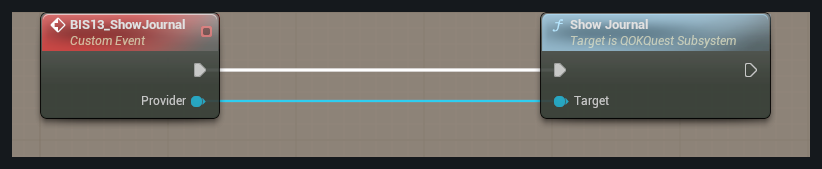
What to connect
1. In the Content Drawer, open BP_BIS_QOK_IntegrationExamples. In the Blueprint editor, open the graph tab BIS13_ShowJournal_Example.
2. Use the quest manager from example 01 for the Provider pin. The red Custom Event needs to be called by your game; it does not run by itself.
3. Call this with Provider when your journal button is pressed. Use HideJournal when closing it.
Expected result
The included journal opens. Test Escape and closing to confirm the player regains normal controls.
14 | Use your own launcher button
BIS14_SetStandaloneLauncherSuppressed_Example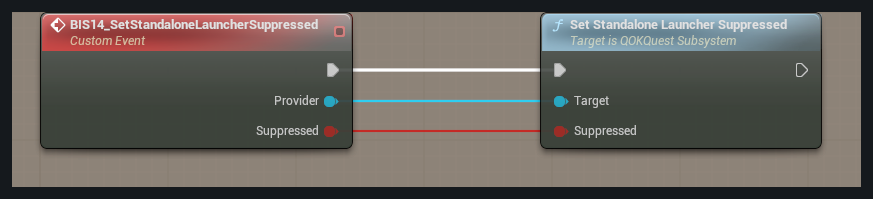
What to connect
1. In the Content Drawer, open BP_BIS_QOK_IntegrationExamples. In the Blueprint editor, open the graph tab BIS14_SetStandaloneLauncherSuppressed_Example.
2. Use the quest manager from example 01 for the Provider pin. The red Custom Event needs to be called by your game; it does not run by itself.
3. Connect Provider and set bSuppressed to true while your replacement launcher exists. Set it back to false when removing your launcher.
Expected result
The supplied launcher hides or returns. This does not make your custom window manage the mouse or keyboard automatically.
15 | Update a window when a quest changes
BIS15_OnQuestStateChanged_Example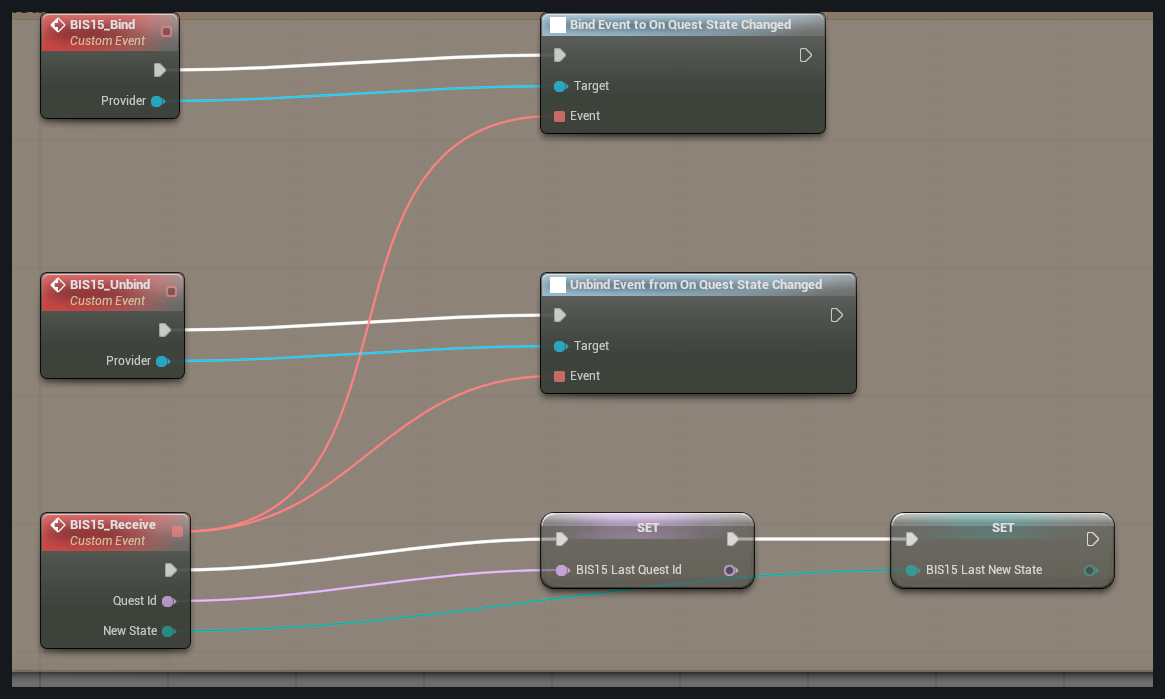
What to connect
1. In the Content Drawer, open BP_BIS_QOK_IntegrationExamples. In the Blueprint editor, open the graph tab BIS15_OnQuestStateChanged_Example.
2. Use the quest manager from example 01 for the Provider pin. The red Custom Event needs to be called by your game; it does not run by itself.
3. Call BIS15_Bind once with the quest manager connected to Provider. This starts listening. Read the current data to fill the window when it first opens.
4. Continue from BIS15_Receive to update your own display when a change arrives. The BIS15_Last variables shown in the graph store the received values.
5. Call BIS15_Unbind with that same Provider when the window closes. This stops the old window from responding.
Expected result
The open window responds once to each relevant change. After it closes, later changes do not update it. Restoring saved progress must not hand out rewards again.
16 | Update task counts when progress changes
BIS16_OnObjectiveProgressChanged_Example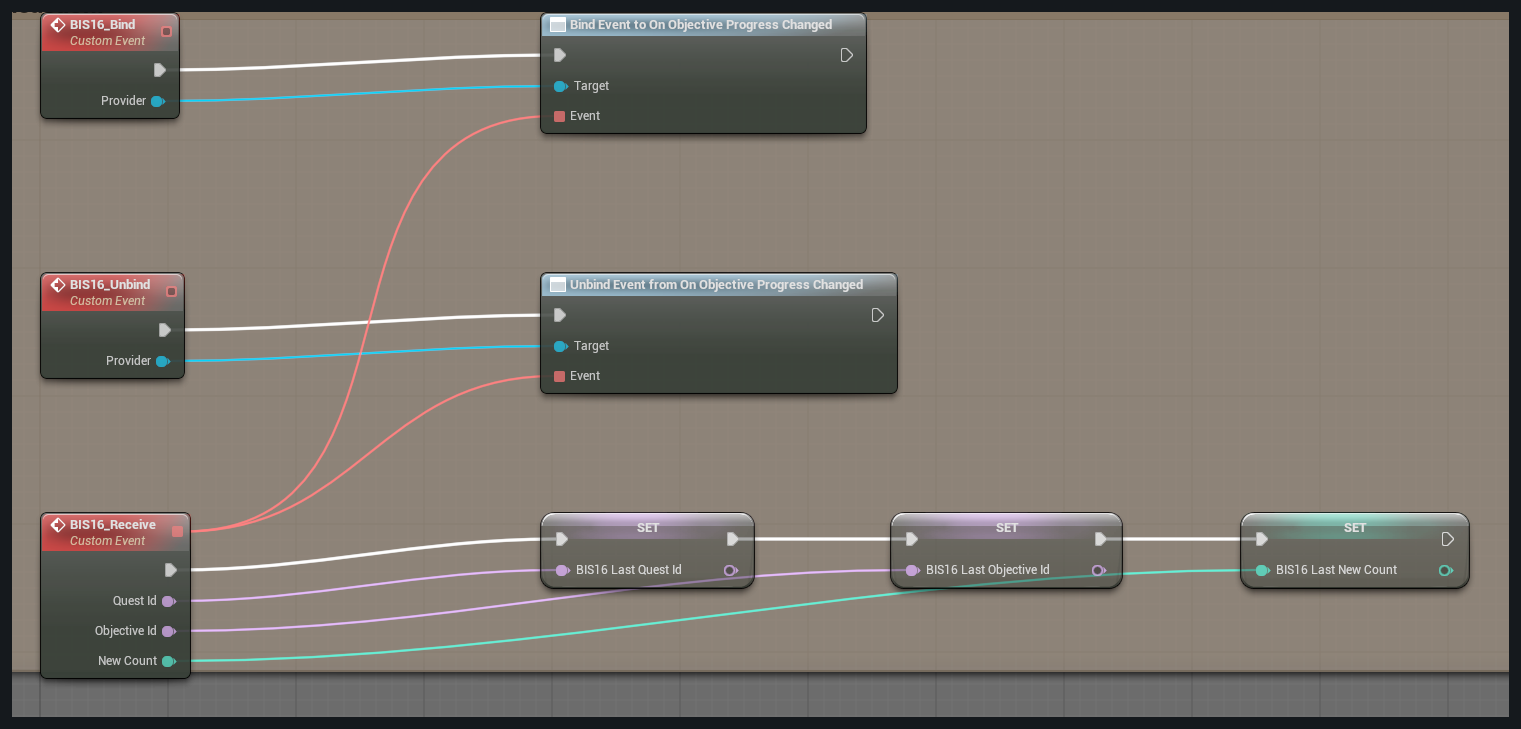
What to connect
1. In the Content Drawer, open BP_BIS_QOK_IntegrationExamples. In the Blueprint editor, open the graph tab BIS16_OnObjectiveProgressChanged_Example.
2. Use the quest manager from example 01 for the Provider pin. The red Custom Event needs to be called by your game; it does not run by itself.
3. Call BIS16_Bind once with the quest manager connected to Provider. This starts listening. Read the current data to fill the window when it first opens.
4. Continue from BIS16_Receive to update your own display when a change arrives. The BIS16_Last variables shown in the graph store the received values.
5. Call BIS16_Unbind with that same Provider when the window closes. This stops the old window from responding.
Expected result
The open window responds once to each relevant change. After it closes, later changes do not update it. Restoring saved progress must not hand out rewards again.
17 | Respond when a quest pays its reward
BIS17_OnQuestRewarded_Example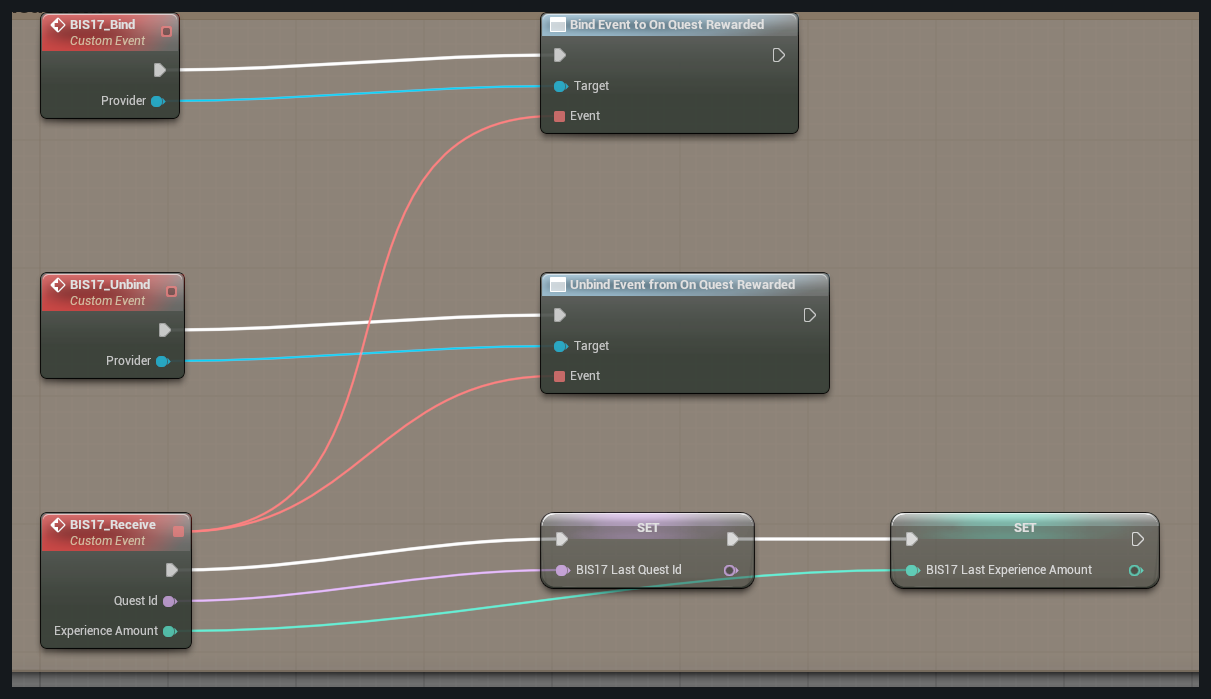
What to connect
1. In the Content Drawer, open BP_BIS_QOK_IntegrationExamples. In the Blueprint editor, open the graph tab BIS17_OnQuestRewarded_Example.
2. Use the quest manager from example 01 for the Provider pin. The red Custom Event needs to be called by your game; it does not run by itself.
3. Call BIS17_Bind once with the quest manager connected to Provider. This starts listening. Read the current data to fill the window when it first opens.
4. Continue from BIS17_Receive to update your own display when a change arrives. The BIS17_Last variables shown in the graph store the received values.
5. Call BIS17_Unbind with that same Provider when the window closes. This stops the old window from responding.
Expected result
The open window responds once to each relevant change. After it closes, later changes do not update it. Restoring saved progress must not hand out rewards again.
18 | Update the experience display
BIS18_OnExperienceChanged_Example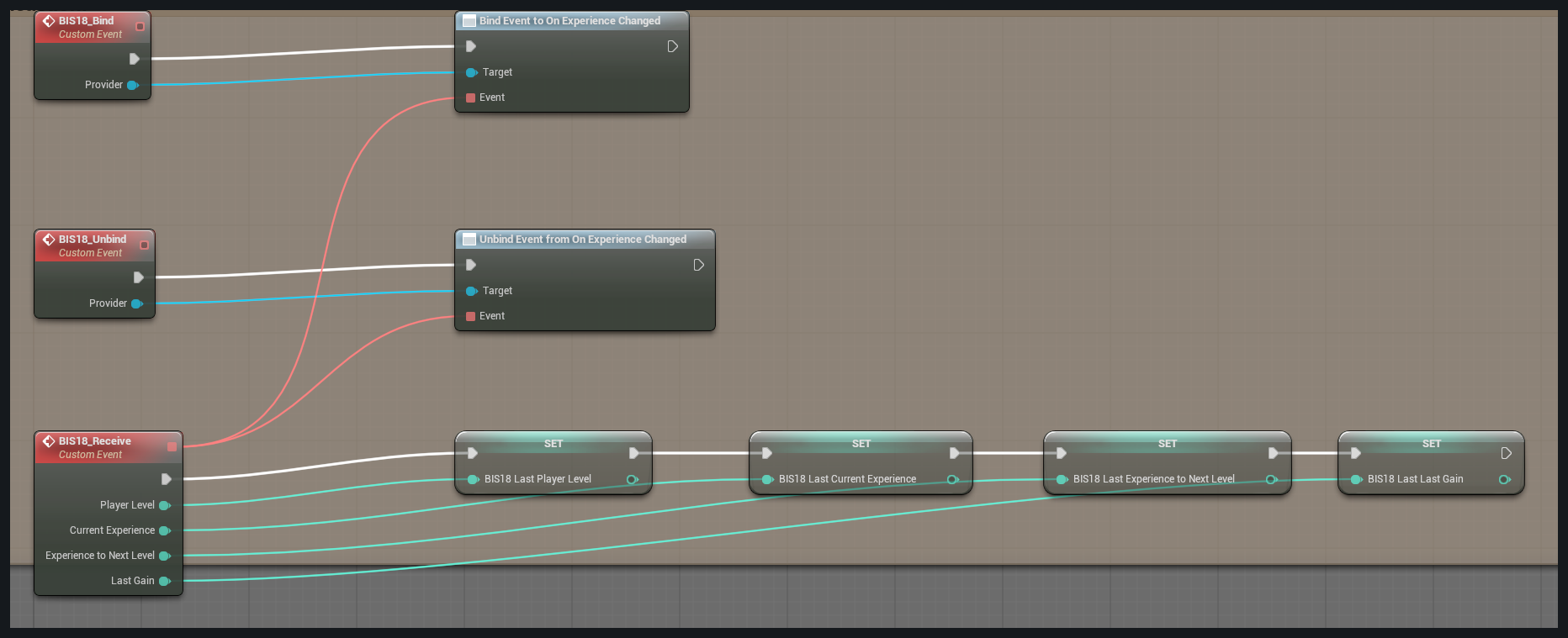
What to connect
1. In the Content Drawer, open BP_BIS_QOK_IntegrationExamples. In the Blueprint editor, open the graph tab BIS18_OnExperienceChanged_Example.
2. Use the quest manager from example 01 for the Provider pin. The red Custom Event needs to be called by your game; it does not run by itself.
3. Call BIS18_Bind once with the quest manager connected to Provider. This starts listening. Read the current data to fill the window when it first opens.
4. Continue from BIS18_Receive to update your own display when a change arrives. The BIS18_Last variables shown in the graph store the received values.
5. Call BIS18_Unbind with that same Provider when the window closes. This stops the old window from responding.
Expected result
The open window responds once to each relevant change. After it closes, later changes do not update it. Restoring saved progress must not hand out rewards again.
19 | Let your game save quest preferences
BIS19_SetExternalPersistenceActive_Example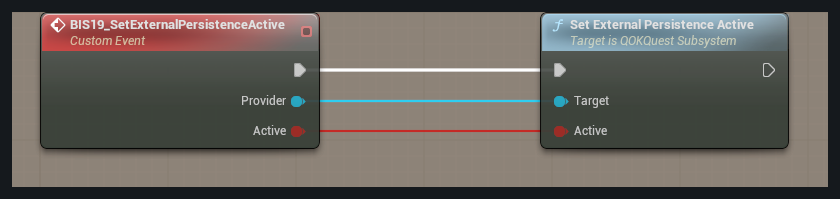
What to connect
1. In the Content Drawer, open BP_BIS_QOK_IntegrationExamples. In the Blueprint editor, open the graph tab BIS19_SetExternalPersistenceActive_Example.
2. Use the quest manager from example 01 for the Provider pin. The red Custom Event needs to be called by your game; it does not run by itself.
3. First connect SetHostSaveHandler to a function that really saves the data and returns true only on success. Then enable bActive with Provider.
Expected result
Preference-save requests go to your function. A missing or failed function must not be reported as a successful save.
20 | Collect quest data for a save
BIS20_CaptureHostState_Example
What to connect
1. In the Content Drawer, open BP_BIS_QOK_IntegrationExamples. In the Blueprint editor, open the graph tab BIS20_CaptureHostState_Example.
2. Use the quest manager from example 01 for the Provider pin. The red Custom Event needs to be called by your game; it does not run by itself.
3. Use Create Save Game Object to make a QOK Save Game object. Connect it and Provider. If capture succeeds, write the object using your save system.
Expected result
The object contains the data, but CaptureHostState itself has not saved a disk file. Keep it consistent with inventory and reward records.
21 | Restore quest data from a save
BIS21_RestoreHostState_Example
What to connect
1. In the Content Drawer, open BP_BIS_QOK_IntegrationExamples. In the Blueprint editor, open the graph tab BIS21_RestoreHostState_Example.
2. Use the quest manager from example 01 for the Provider pin. The red Custom Event needs to be called by your game; it does not run by itself.
3. Load your QOK Save Game object through your own save system. Register the needed quest definitions, then connect the loaded object and Provider.
Expected result
A successful restore brings back saved state. It must not hand out rewards for completed quests again.
22 | Use an existing shared window manager
BIS22_SetExternalSuiteCoordinatorActive_Example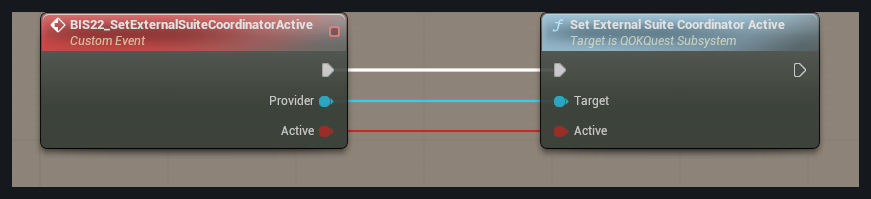
What to connect
1. In the Content Drawer, open BP_BIS_QOK_IntegrationExamples. In the Blueprint editor, open the graph tab BIS22_SetExternalSuiteCoordinatorActive_Example.
2. Use the quest manager from example 01 for the Provider pin. The red Custom Event needs to be called by your game; it does not run by itself.
3. Enable this only if your game already coordinates its windows and input. Connect Provider and the requested active value.
Expected result
Your game takes the shared coordination role. Restore the normal mode when disconnecting. Replacing a launcher alone does not need this setting.
23 | Read one quest's description
BIS23_GetQuestDefinition_Example
What to connect
1. In the Content Drawer, open BP_BIS_QOK_ExtendedExamples. In the Blueprint editor, open the graph tab BIS23_GetQuestDefinition_Example.
2. Use the quest manager from example 01 for the Provider pin. The red Custom Event needs to be called by your game; it does not run by itself.
3. Connect Provider and the QuestId you want to read.
Expected result
A valid ID returns that quest's definition. False means the request failed and the returned definition is empty.
24 | Read one quest's progress
BIS24_GetQuestProgress_Example
What to connect
1. In the Content Drawer, open BP_BIS_QOK_ExtendedExamples. In the Blueprint editor, open the graph tab BIS24_GetQuestProgress_Example.
2. Use the quest manager from example 01 for the Provider pin. The red Custom Event needs to be called by your game; it does not run by itself.
3. Connect Provider and the QuestId you want to read.
Expected result
A valid ID returns its current progress. False means the request failed; do not present the empty result as completed progress.
25 | Read how many tasks are done
BIS25_GetObjectiveCount_Example
What to connect
1. In the Content Drawer, open BP_BIS_QOK_ExtendedExamples. In the Blueprint editor, open the graph tab BIS25_GetObjectiveCount_Example.
2. Use the quest manager from example 01 for the Provider pin. The red Custom Event needs to be called by your game; it does not run by itself.
3. Connect Provider, QuestId and ObjectiveId after your game has reported a successful action.
Expected result
Use the returned count for that objective in your own display.
26 | Change the tracker's width
BIS26_SetTrackerWidth_Example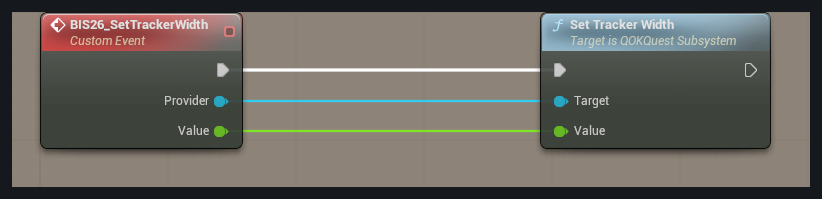
What to connect
1. In the Content Drawer, open BP_BIS_QOK_ExtendedExamples. In the Blueprint editor, open the graph tab BIS26_SetTrackerWidth_Example.
2. Use the quest manager from example 01 for the Provider pin. The red Custom Event needs to be called by your game; it does not run by itself.
3. Connect Provider and the new width value shown by the input pin. Call it as your slider moves; call CommitAppearance when dragging ends.
Expected result
The tracker becomes wider or narrower immediately. Confirm the save succeeds when the slider is released.
27 | Change the tracker's height
BIS27_SetTrackerHeight_Example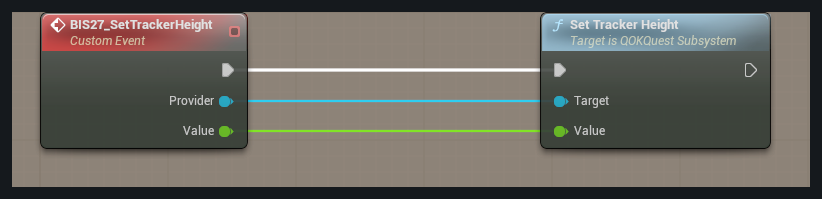
What to connect
1. In the Content Drawer, open BP_BIS_QOK_ExtendedExamples. In the Blueprint editor, open the graph tab BIS27_SetTrackerHeight_Example.
2. Use the quest manager from example 01 for the Provider pin. The red Custom Event needs to be called by your game; it does not run by itself.
3. Connect Provider and a height value. Use 0 when you want the window to fit the quests it contains. Save with CommitAppearance after editing.
Expected result
The height follows the setting, or fits the content when set to 0.
28 | Resize the whole tracker
BIS28_SetTrackerScale_Example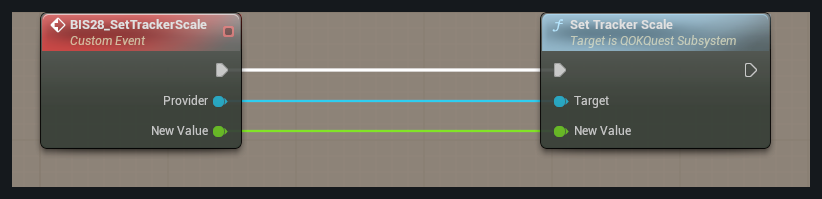
What to connect
1. In the Content Drawer, open BP_BIS_QOK_ExtendedExamples. In the Blueprint editor, open the graph tab BIS28_SetTrackerScale_Example.
2. Use the quest manager from example 01 for the Provider pin. The red Custom Event needs to be called by your game; it does not run by itself.
3. Connect Provider and the scale value from your control. Save with CommitAppearance when editing ends.
Expected result
The tracker scales live. The plugin limits extreme values to its supported range.
29 | Change objective text size
BIS29_SetTrackerTextSize_Example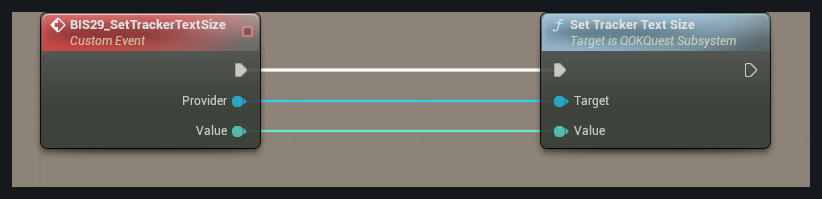
What to connect
1. In the Content Drawer, open BP_BIS_QOK_ExtendedExamples. In the Blueprint editor, open the graph tab BIS29_SetTrackerTextSize_Example.
2. Use the quest manager from example 01 for the Provider pin. The red Custom Event needs to be called by your game; it does not run by itself.
3. Connect Provider and the requested text-size value. Save with CommitAppearance after editing.
Expected result
The tracker text changes size within the supported range.
30 | Change the tracker's plain background
BIS30_SetTrackerOpacity_Example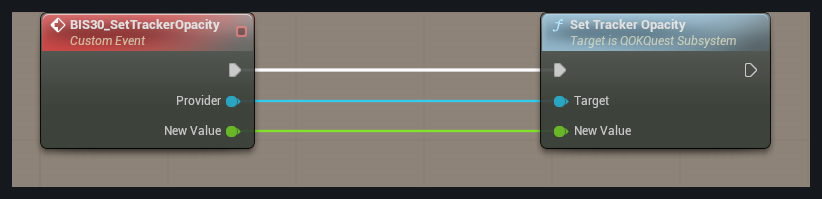
What to connect
1. In the Content Drawer, open BP_BIS_QOK_ExtendedExamples. In the Blueprint editor, open the graph tab BIS30_SetTrackerOpacity_Example.
2. Use the quest manager from example 01 for the Provider pin. The red Custom Event needs to be called by your game; it does not run by itself.
3. Connect Provider and the opacity value from your control. Save with CommitAppearance when editing ends.
Expected result
The plain background becomes more or less transparent; the decorative picture has its own setting.
31 | Change the tracker's background picture
BIS31_SetTrackerArtOpacity_Example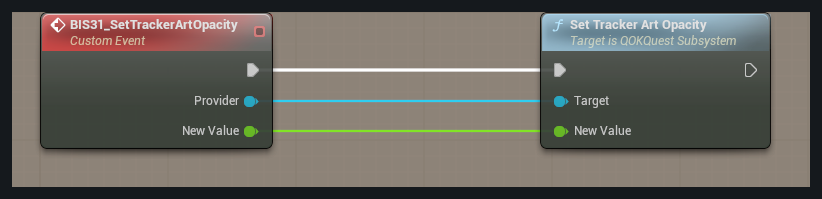
What to connect
1. In the Content Drawer, open BP_BIS_QOK_ExtendedExamples. In the Blueprint editor, open the graph tab BIS31_SetTrackerArtOpacity_Example.
2. Use the quest manager from example 01 for the Provider pin. The red Custom Event needs to be called by your game; it does not run by itself.
3. Connect Provider and the art-opacity value. Save with CommitAppearance when editing ends.
Expected result
The decorative picture changes transparency separately from the text and plain background.
32 | Resize the journal
BIS32_SetJournalScale_Example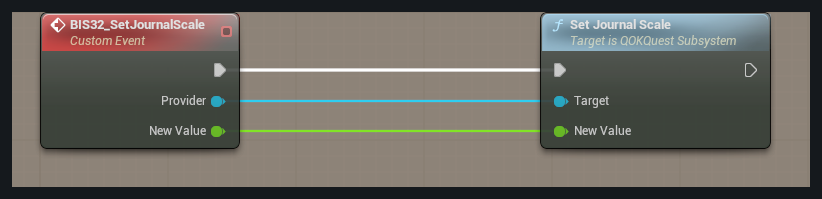
What to connect
1. In the Content Drawer, open BP_BIS_QOK_ExtendedExamples. In the Blueprint editor, open the graph tab BIS32_SetJournalScale_Example.
2. Use the quest manager from example 01 for the Provider pin. The red Custom Event needs to be called by your game; it does not run by itself.
3. Connect Provider and the scale value. Save with CommitAppearance after editing.
Expected result
The journal becomes larger or smaller using the same setting as its included controls.
33 | Change the experience bar's width
BIS33_SetExperienceWidth_Example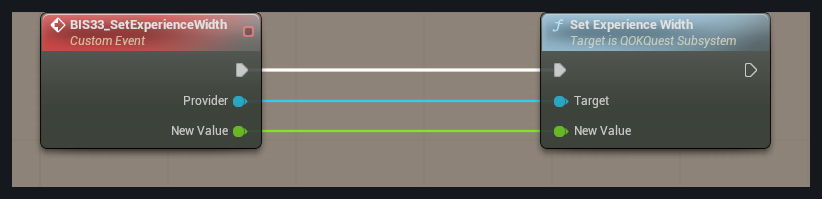
What to connect
1. In the Content Drawer, open BP_BIS_QOK_ExtendedExamples. In the Blueprint editor, open the graph tab BIS33_SetExperienceWidth_Example.
2. Use the quest manager from example 01 for the Provider pin. The red Custom Event needs to be called by your game; it does not run by itself.
3. Connect Provider and the requested width value. Save with CommitAppearance when editing ends.
Expected result
The experience bar changes width. Its optional backdrop has separate size controls.
34 | Show or hide the objective tracker
BIS34_SetShowTracker_Example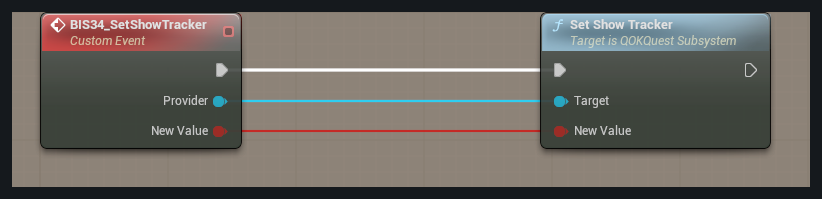
What to connect
1. In the Content Drawer, open BP_BIS_QOK_ExtendedExamples. In the Blueprint editor, open the graph tab BIS34_SetShowTracker_Example.
2. Use the quest manager from example 01 for the Provider pin. The red Custom Event needs to be called by your game; it does not run by itself.
3. Connect Provider and the show/hide value on the input pin.
Expected result
The tracker appears or disappears. Quest progress is retained while it is hidden.
35 | Limit the number of displayed quests
BIS35_SetMaxTrackedQuests_Example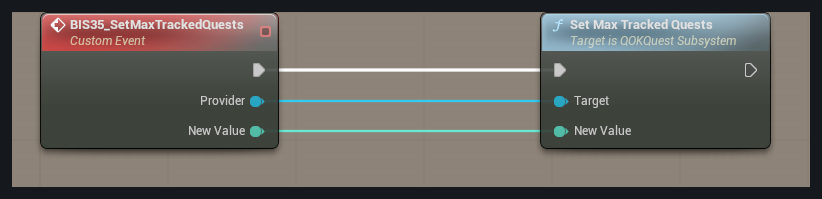
What to connect
1. In the Content Drawer, open BP_BIS_QOK_ExtendedExamples. In the Blueprint editor, open the graph tab BIS35_SetMaxTrackedQuests_Example.
2. Use the quest manager from example 01 for the Provider pin. The red Custom Event needs to be called by your game; it does not run by itself.
3. Connect Provider and the maximum count you want the tracker to display.
Expected result
The display limit changes. This does not delete quests or reset their progress.
36 | Move the journal
BIS36_SetJournalOffset_Example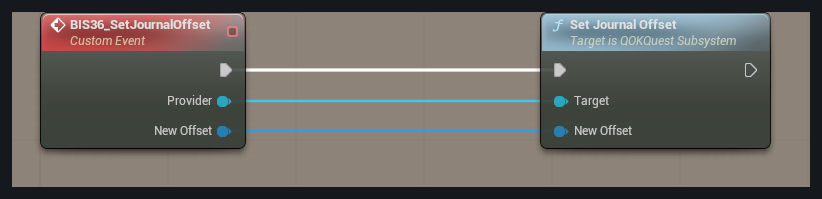
What to connect
1. In the Content Drawer, open BP_BIS_QOK_ExtendedExamples. In the Blueprint editor, open the graph tab BIS36_SetJournalOffset_Example.
2. Use the quest manager from example 01 for the Provider pin. The red Custom Event needs to be called by your game; it does not run by itself.
3. Connect Provider and the position offset shown in the graph. The offset is relative to the game viewport. Save with CommitAppearance when the move ends.
Expected result
The journal moves while the plugin keeps it within its allowed screen bounds.
37 | Save appearance changes
BIS37_CommitAppearance_Example
What to connect
1. In the Content Drawer, open BP_BIS_QOK_ExtendedExamples. In the Blueprint editor, open the graph tab BIS37_CommitAppearance_Example.
2. Use the quest manager from example 01 for the Provider pin. The red Custom Event needs to be called by your game; it does not run by itself.
3. Call this once after releasing a custom slider or finishing a window drag. Connect Provider and check the returned result.
Expected result
True confirms success through the active saving path. Do not show a saved message after failure or call this every frame.
38 | Let the player abandon a quest
BIS38_AbandonQuest_Example
What to connect
1. In the Content Drawer, open BP_BIS_QOK_ExtendedExamples. In the Blueprint editor, open the graph tab BIS38_AbandonQuest_Example.
2. Use the quest manager from example 01 for the Provider pin. The red Custom Event needs to be called by your game; it does not run by itself.
3. Connect Provider and QuestId when the player confirms abandonment. Check the result before your game changes related pickups or items.
Expected result
An allowed active quest is abandoned. Your game must handle the items and objects it created for that quest.
39 | Mark a quest as failed
BIS39_FailQuest_Example
What to connect
1. In the Content Drawer, open BP_BIS_QOK_ExtendedExamples. In the Blueprint editor, open the graph tab BIS39_FailQuest_Example.
2. Use the quest manager from example 01 for the Provider pin. The red Custom Event needs to be called by your game; it does not run by itself.
3. When your game's failure rule is met, connect Provider and QuestId. Check the returned result.
Expected result
An allowed active quest is marked failed. The plugin does not invent a time limit or other failure rule for you.
40 | Reset a quest for another attempt
BIS40_ResetQuest_Example
What to connect
1. In the Content Drawer, open BP_BIS_QOK_ExtendedExamples. In the Blueprint editor, open the graph tab BIS40_ResetQuest_Example.
2. Use the quest manager from example 01 for the Provider pin. The red Custom Event needs to be called by your game; it does not run by itself.
3. Connect Provider and QuestId only when your game intends to reset it. First decide what should happen to old quest items and rewards.
Expected result
Quest state resets if allowed. Your game must prevent leftover items or repeated rewards from creating an exploit.
41 | Remove a quest definition
BIS41_RemoveQuestDefinition_Example
What to connect
1. In the Content Drawer, open BP_BIS_QOK_ExtendedExamples. In the Blueprint editor, open the graph tab BIS41_RemoveQuestDefinition_Example.
2. Use the quest manager from example 01 for the Provider pin. The red Custom Event needs to be called by your game; it does not run by itself.
3. Stop the game code that uses the quest, then connect Provider and QuestId. Check whether removal is allowed.
Expected result
A successful request removes the eligible definition. A rejected request must not be treated as removal.
42 | Give experience for a gameplay event
BIS42_AwardHostExperience_Example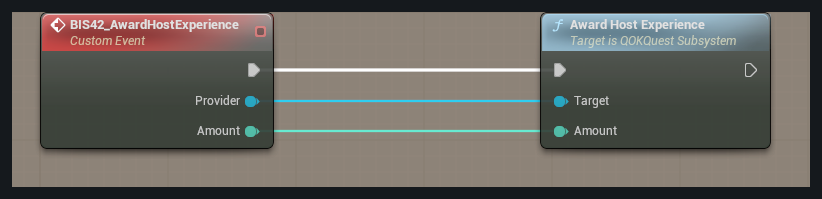
What to connect
1. In the Content Drawer, open BP_BIS_QOK_ExtendedExamples. In the Blueprint editor, open the graph tab BIS42_AwardHostExperience_Example.
2. Use the quest manager from example 01 for the Provider pin. The red Custom Event needs to be called by your game; it does not run by itself.
3. After your game confirms the player earned it, connect Provider and the amount shown in the graph. Call once for that credited event.
Expected result
Experience and its usual change notification update. Your game prevents the same kill or action from paying twice.
Read, download or print
Read this complete guide here, or save a PDF to use offline.
- View the screen PDF · Download the screen PDF
- View the print-friendly PDF · Download the print-friendly PDF
The print copy uses a white background and US Letter landscape pages. Each complete graph has its own page, following its instructions, so the graph is never broken into pieces. Print at actual size on Letter paper, or use Fit on A4. You can print just the example pages you need.
The dark screen copy keeps each graph and its instructions together. Both versions cover the same examples.